🚨 Is Your Chromebook Not Starting Properly?
If you see the message "Chrome OS is missing or damaged. Please insert a recovery USB stick or SD card", don't panic. This guide will help you fix it step by step, even if you've never done anything technical before.

What Does This Error Mean?
This message appears when your Chromebook's operating system (Chrome OS) has problems. It's like the "brain" of your computer is damaged or can't be found. It doesn't mean your Chromebook is permanently broken. In most cases, it can be easily fixed.
- A system update that didn't complete properly
- The Chromebook shut down unexpectedly during an update
- System files damaged by a virus or error
- Internal hard drive problems
Solutions: From Easiest to Most Complete
Solution 1: Restart the Chromebook (Easiest)
1 Turn off your Chromebook completely by holding down the power button for 10 seconds.
2 Disconnect all external devices: mouse, USB keyboard, external hard drives, SD cards, etc.
3 Turn it back on by pressing the power button.
Solution 2: Internet Recovery (For Newer Chromebooks)
If your Chromebook is from 2020 or newer, you can probably recover it directly from the internet without needing a USB drive.
1 Enter Recovery Mode:
- Hold down the Esc + Refresh (F3) keys at the same time
- Without releasing those keys, press the Power button
- When a message appears on screen, release all keys
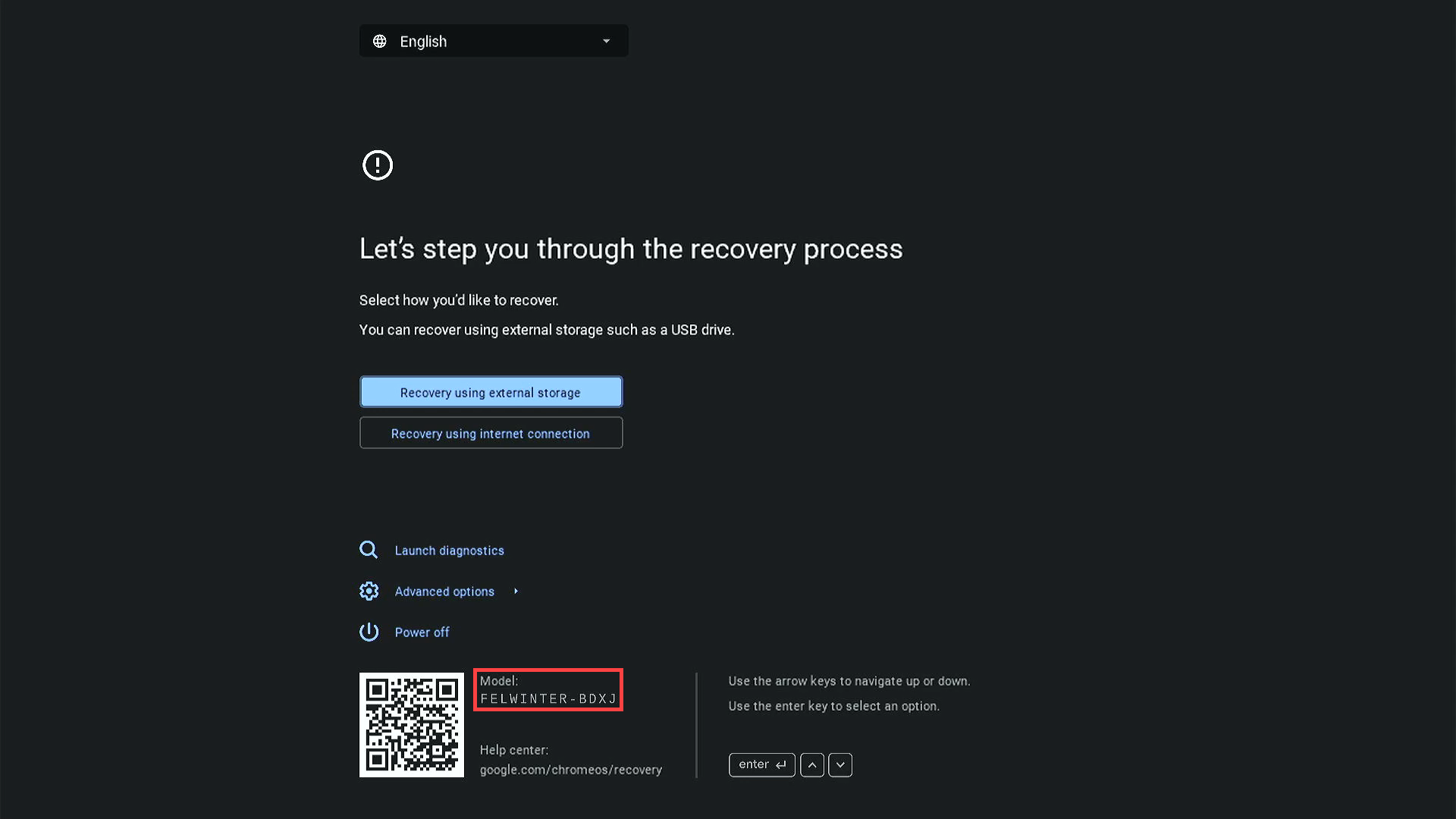
2 Select "Recover using internet connection"
3 Connect your Chromebook to WiFi if it's not connected
4 Follow the on-screen instructions. The process will take 15-30 minutes.
Solution 3: USB Recovery (For Older Chromebooks or Without Internet)
If your Chromebook doesn't have the internet recovery option, you'll need to create a recovery USB drive. You'll need another computer (can be Windows, Mac, or even another working Chromebook).
Step A: Create the Recovery USB (On Another Computer)
1 Get a USB drive of 8GB or more (all its content will be erased)
2 On the other computer, open Google Chrome
3 Install "Chromebook Recovery Utility":
- Go to Chrome Web Store
- Search for "Chromebook Recovery Utility"
- Click "Add to Chrome"
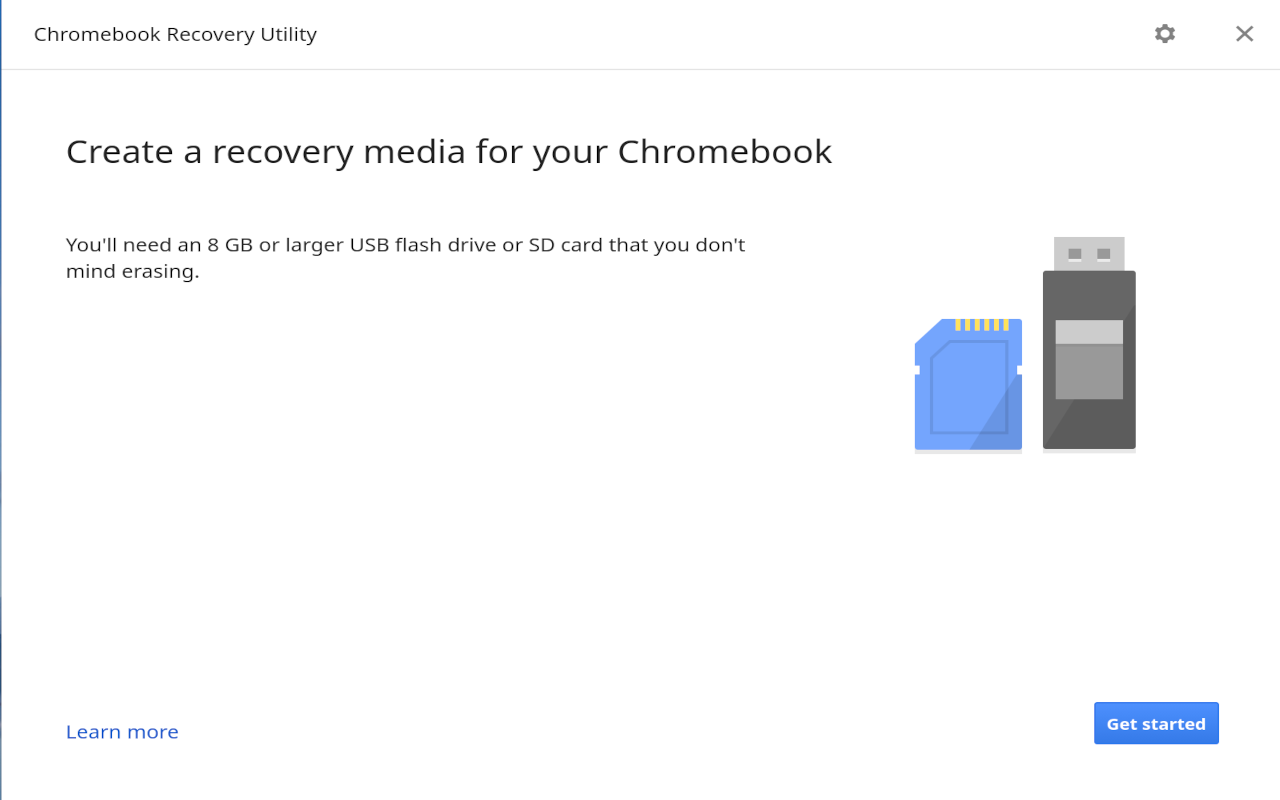
4 Open the app from Chrome's menu (extensions icon)
5 Click "Get Started"
6 Identify your Chromebook:
- Look for the model on the bottom of your Chromebook (example: "HP Chromebook 14")
- Select it from the list
- If you can't find it, select "Select a model from a list"
7 Insert the USB drive into the computer
8 Select the USB drive and click "Continue"
9 Click "Create now" and wait (can take 10-20 minutes)
Step B: Use the USB on Your Chromebook
1 Insert the USB drive into your Chromebook with the error
2 Enter Recovery Mode (Esc + Refresh + Power, as explained before)
3 The Chromebook will detect the USB automatically and start recovery
4 Follow the on-screen instructions until complete
5 When finished, the Chromebook will restart and be like new
Comparison of Recovery Methods
| Method | Advantages | Disadvantages | When to Use It? |
|---|---|---|---|
| Simple Restart | • Fast (1 minute) • Doesn't erase files • Doesn't need anything extra | • Only works for minor errors | Always try this first |
| Internet Recovery | • Doesn't need USB • Faster than USB • Automatic | • Only newer Chromebooks • Needs WiFi • Erases all files | Chromebooks from 2020 or newer with WiFi available |
| USB Recovery | • Works on all Chromebooks • Doesn't need WiFi on damaged Chromebook | • Needs another computer • Needs 8GB+ USB • Slower (30-40 min) • Erases all files | Older Chromebooks or without WiFi access |
Frequently Asked Questions
Will I Lose All My Files?
If you use internet or USB recovery, YES, all local files will be erased. However, if you saved your files to Google Drive (like most Chromebook users), those files will be safe in the cloud and you can access them again after recovery.
How Long Does Recovery Take?
Internet recovery takes 15-30 minutes. USB recovery can take 30-40 minutes, depending on USB and Chromebook speed.
Do I Need Technical Knowledge?
No. This guide is designed for anyone to follow. You just need to be able to read and follow step-by-step instructions. If you can use a Chromebook normally, you can do this.
What If No Solution Works?
If after trying all solutions the error persists, there may be a hardware problem (damaged hard drive). In that case, you'll need to take your Chromebook to a professional technician.
Need Professional Help?
If after following this guide you still have problems with your Chromebook, or if you prefer to have an expert check it, at OJaime Solutions we're here to help.
We offer at-home technical service in Hialeah and Miami. FREE diagnosis and warranty included.
📱 Contact via WhatsAppCall us at 786-781-7671
Tips to Avoid This Error in the Future
1. Never turn off the Chromebook during an update
If you see it's updating, let it finish even if it takes a while.
2. Keep your Chromebook updated
Go to Settings → About Chrome OS → Check for updates regularly.
3. Always use Google Drive for your important files
That way, if you need to recover the Chromebook, you won't lose anything.
4. Don't install extensions from unknown sources
Only install extensions from the official Chrome Web Store.
5. Turn off the Chromebook properly
Always use the shutdown button from the menu, don't just close the lid.
✅ Final Summary
If you see the "Chrome OS is missing or damaged" error:
- Try restarting the Chromebook (Solution 1)
- If it doesn't work, use internet recovery if your Chromebook is new (Solution 2)
- If you don't have that option, create a recovery USB on another computer (Solution 3)
- If nothing works, contact a professional technician
Did this guide help you? Share it with someone who might need it. And if you need professional help, remember that at OJaime Solutions we're just a call away.